
New
Are you ready for Agentforce? Take our assessment to find out today!
    • Expertise
          • Product

          • Sales Cloud
          • Service Cloud
          • Account Engagement
          • Marketing Cloud Next
          • Revenue Cloud
          • Agentforce
          • Data 360 (Data Cloud)
          • CRM Analytics
          • Tableau Next
          • Experience Cloud
          • Industry

          • Manufacturing
          • Healthcare
          • High Tech
          • Financial Services
          • Media & Entertainment
    • Solutions
      • Consulting
      • Implementation
      • Managed Services
      • Health Check
      • Training
    • About Nebula
      • We Are Nebula
      • Meet the Team
      • Join Our Team
    • Resources
    • Login
    • Get in Touch
Share:

How To Use Salesforce CMS

by Zoe Fisher
6th November 2020 • 4 min read
Zoe Fisher
Share:

Once your Salesforce Administrator has set up Salesforce CMS, you’ll be able to create, manage and deliver content across all of your channels in a way that’s super easy to collaborate with your team and even external contacts. Here, we’ll show you how to use Salesforce CMS and some tips around creating and organising your content.

Where to find it

If your Salesforce Admin has set up Salesforce CMS to use with the Pardot Email Builder in Lightning Experience, then you’ll be able to see CMS Channels and CMS Workspaces in the Pardot Lightning App.
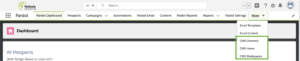
Alternatively, from the App Launcher search for ‘CMS’ to find and open Salesforce CMS.
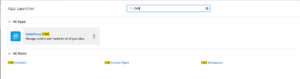
If you cannot find the app, go to Setup > Users > your User profile > and ensure that Salesforce CMS is set to Visible. (If you do not have admin rights in Salesforce, you will need to ask your Salesforce Admin to do this part for you). 

CMS Workspaces

You can have multiple CMS Workspaces. Each Workspace has its own folder structure which holds content. For example, you could have a marketing Workspace, and a separate sales Workspace. Workspace contributors can create content and manage access, and all contributors must have a role:

  • Admins: can add/remove Users
  • Content Managers: have access to everything in the workspace
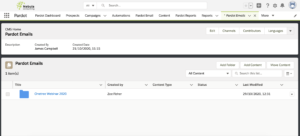
Organise your Workspace

You can add content directly into your Workspace. Best practice is to create folders and store your content in a relevant folder. I’d recommend that your folder structure here is similar to your existing folder structure on Pardot. For example:

  • Events
  • Webinars
    • 2019
    • 2020
      • 30-11 – OneTree VIP Webinar
  • Newsletters
    • 2019
    • 2020
  • Product Updates

Within each folder you can store all relevant images, pdfs and documents so they’re super easy to find for everyone in the team.
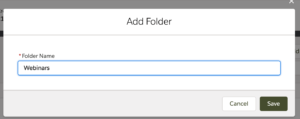
To create a folder, click Add Folder > Enter a name > Click Save.

Creating content

Now you have your folders in place, you can start adding files that you will be using for your email content and website (as well as any other platform you have that requires content!).
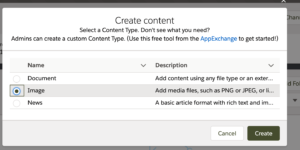
  • In your folder, click Add Content
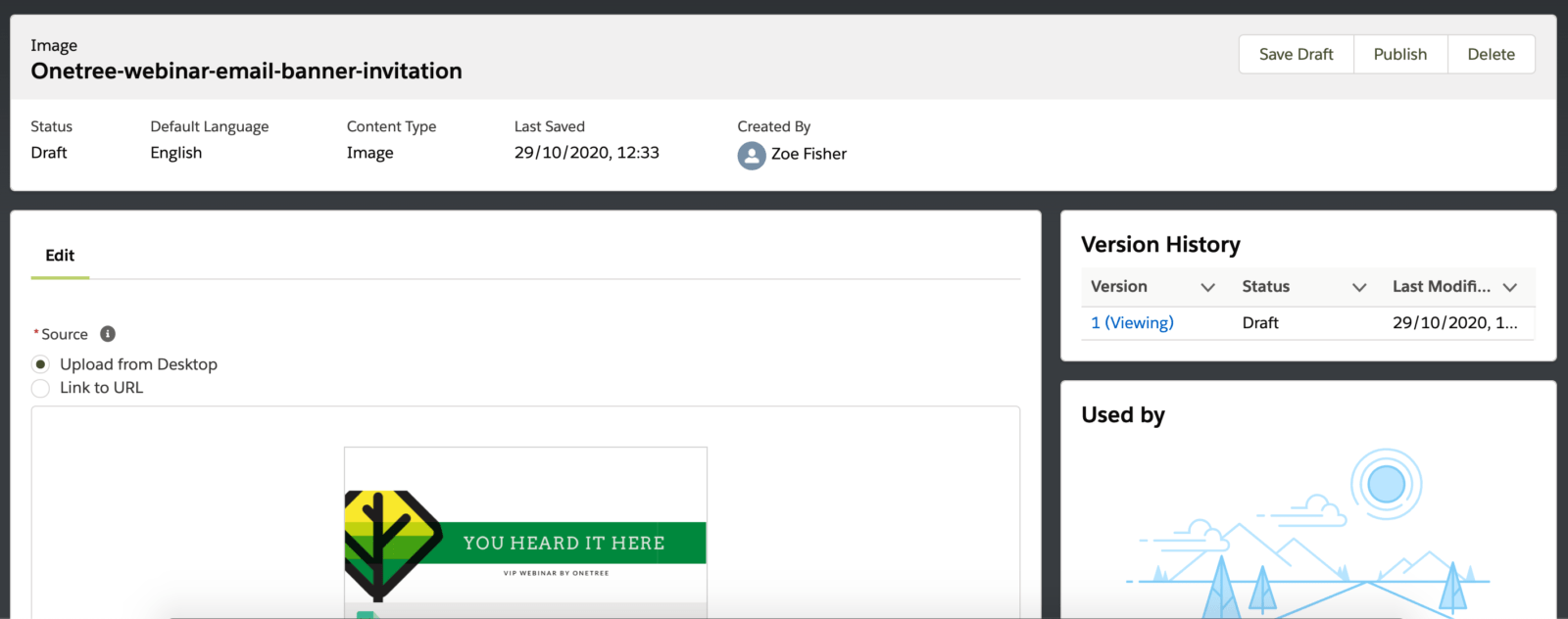
  • Select the content type that applies to your file – this example uses the ‘Image’ content type
  • Click Create

Now you can choose how to add your content:

  • Upload from desktop
  • Link to URL

  • If you are uploading from desktop, click the Upload File to select a file to upload from your computer or simply drag your file and drop it on the Upload File box. The file will then preview in the box.
  • If you are using the link to URL option, paste the externally sourced image url into the box provided. A preview will be displayed.

Once the file has been added, scroll down to complete creating your piece of content.

  • Give your content a Title – this will be the name of the content. We recommend using a naming convention to help organise your content.
  • Put in some Alt Text – this is what would be displayed in your emails if the recipient did not download your images.
  • The content slug will auto-create based on the Title text, this can be edited by clicking the pencil icon.
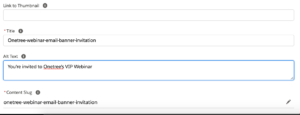
  • Once you’re happy with the details of your image, click Save Draft.

The content will be created in Draft form, when you’re ready for this to be made available for use, click Publish.

Managing content

Once you’ve created your content, you can start using it across your marketing channels.
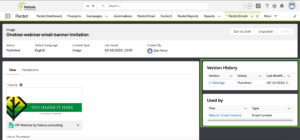
  • Version History allows you to manage the various versions of your file and file details, and includes the last modified date.
  • You can see where the content is being used in the Used by section.

To update your file, click Edit as Draft. This creates a Draft version of your content, once you have finished updating this, click Publish.
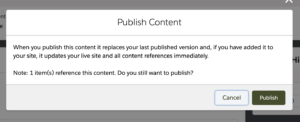
This will replace the last published version and update all references of this content immediately. The latest version will appear in Version History along with the previous versions of your content.


For more learning on how to use Salesforce CMS, check out this Trailhead module. If you’d like assistance with enabling Salesforce CMS, get in touch for one of our experts to guide you through the process!


Find related resources by topic

Marketing

You may also be interested in

Fix the Foundations: Success in the Agentic Era Marketing Edition
Blog
Marketing

Fix the Foundations: Success in the Agentic Era Marketing Edition

We hear the announcements and on repeat about how the Agentic Era is here to transform the B2B and B2C landscapes. These changes will enable…

4 min read Read Blog
Laying the Right Foundations
Success Story
Account Engagement Sales Cloud

Laying the Right Foundations

Complex processes and cautious stakeholders hindered Redwheel's CRM adoption. Nebula's Account Engagement and Salesforce audits mapped the journey, restoring confidence and delivering a strategic roadmap for a powerful, sales-enabled CRM.

May 27, 2025 Read Customer Story
How to Avoid Completion Action Limits in Account Engagement (Pardot) Using Engagement Studio
Blog
Marketing

How to Avoid Completion Action Limits in Account Engagement (Pardot) Using Engagement Studio

Conditional completion actions and completion actions, while powerful, can quickly consume the available limits on your forms and form handlers. If you’ve been creating and managing…

3 min read Read Blog
Aligning Marketing and Sales for a Global Insurer
Success Story
Account Engagement Sales Cloud

Aligning Marketing and Sales for a Global Insurer

Poor email deliverability and disconnected data misaligned Lockton's sales and marketing. Nebula's Salesforce and Account Engagement integration established governance, delivering a 97% delivery rate, 25 empowered users, and transparent insights.

Apr 30, 2025 Read Customer Story
Upgrade Your Form UX with Toggle Switches
Blog
Marketing

Upgrade Your Form UX with Toggle Switches

If you would like to modernise your forms, provide a slicker user experience, and match contemporary web design, follow our mini guide that helps you…

2 min read Read Blog
Creating a seamless membership experience
Success Story
Account Engagement Sales Cloud Service Cloud

Creating a seamless membership experience

Data silos and disparate systems hindered the World Travel and Tourism Council's membership experience. Nebula's Cvent integration, record cleansing and automated invoicing delivered rapid efficiency, unified data, and a 10-year partnership.

Jan 30, 2025 Read Customer Story
Account Engagement Landing Page Conversion Mastery
Blog
Marketing

Account Engagement Landing Page Conversion Mastery

Building pages that truly perform in Account Engagement isn't just about clicking buttons; it's about strategy, technical finesse, and empathy for the user. Here’s my…

5 min read Read Blog
Targeted Sales Enablement for Users
Success Story
Account Engagement CRM Analytics Sales Cloud

Targeted Sales Enablement for Users

Stale opportunities and missing data delayed Clarion Events' pipeline. Nebula's Einstein Next Best Action delivered intuitive guidance, surging stage moves by 132%, doubling activities, capturing crucial VAT details, and boosting CRM adoption.

Jan 3, 2025 Read Customer Story
5 Hidden Snags in Account Engagement
Blog
Marketing

5 Hidden Snags in Account Engagement

Managing Salesforce Account Engagement (Pardot) requires more than just marketing knowledge. Even in a well-established org, you can sometimes hit some invisible walls. Below are…

4 min read Read Blog
5 new Marketing Cloud Next features we’re excited to try
Blog
Marketing

5 new Marketing Cloud Next features we’re excited to try

The Spring ’26 release is here, and it’s a significant milestone for Marketing Cloud Next (also known as Agentforce Marketing). This release focuses on making…

4 min read Read Blog
Nebula

Our journey started in 2012 with a clear vision and core values. Nebula is dedicated to empowering our customers through fostering relationships founded on collaboration, flexibility, and trust.

  • We Are Nebula
  • Resources
  • Join Our Team
  • Terms and Conditions
  • Privacy Policy
The Space Aldgate,
Irongate House,
22-30 Dukes Place,
London EC3A 7LP
+44 207 112 8026
Get in Touch
Copyright © 2026 Nebula Consulting. All Rights Reserved.