


If you’ve got your Salesforce and Pardot accounts connected, you have probably come across Sync Errors before. Sync Errors are Salesforce’s way to reject an attempted sync of a prospect. They can occur for a number of reasons and can be quite frustrating to solve. So, to make your life easier, here’s how to resolve 5 common Pardot Sync Errors.
Before we get started, you will need to know where to find your Sync Errors. Navigate to Admin > Connectors (Classic) or Pardot Settings > Connectors (Lightning). Select the action cog next to the Salesforce connector, and select ‘Sync Errors’ from the drop down.
1. Invalid picklist value
Why does it happen?
This can happen for a couple of reasons. The most common is when the Salesforce field accepted values are not adhered to in Pardot. For example, if you have a picklist field in Salesforce for ‘Industry’; and the accepted values are Finance, Banking, PR, and Healthcare; and Pardot tries to send through a value of ‘Marketing’, Salesforce will reject the value and trigger a Sync Error.
Typically, this happens when the field has not been set up correctly on Pardot forms (e.g. when the ‘Load Default Data’ button hasn’t been pressed) leaving prospects able to enter any value.
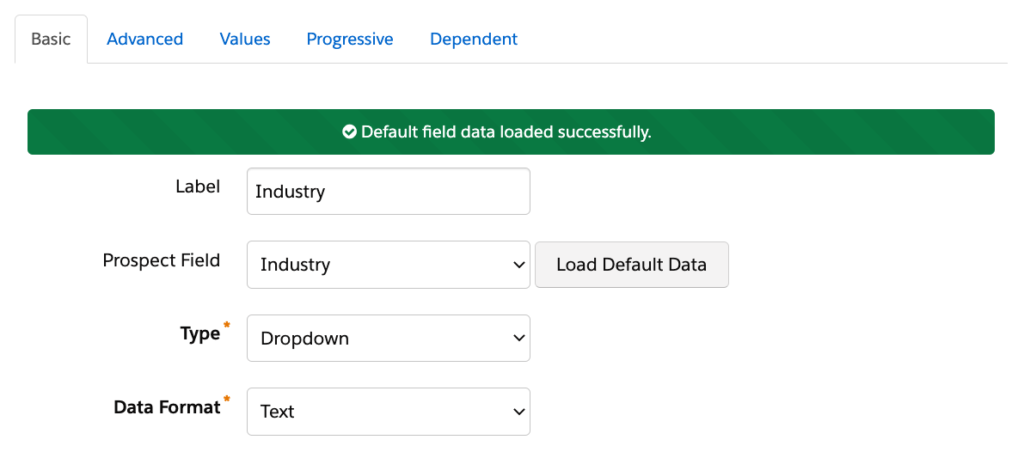
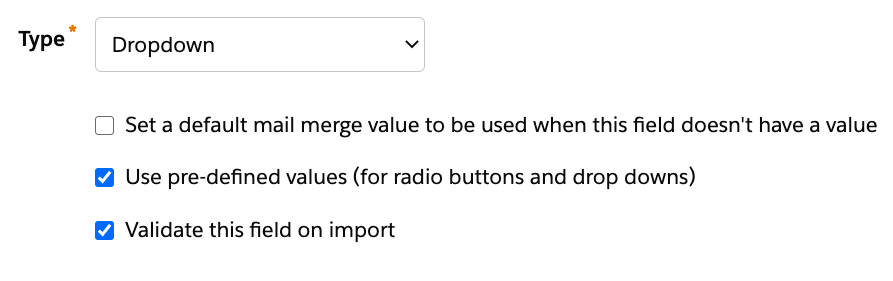
It can also happen if you do not have the field set to validate on import, as this can mean users could be importing values that are not allowed from external sources.
The less common reason for seeing this error is if this Salesforce field’s picklist is dependent on another field in Salesforce. This ‘controlling field’ will need to allow the value to sync across. If it’s not allowed, the Sync Error will occur.
How can it be resolved?
The first step is to ensure your fields are mapped correctly, and all forms (including forms mapped to form handlers) are capturing the data correctly and in line with the Salesforce values.
The second step is to ensure the field is being validated on import. This will prevent data imports from importing inconsistent values.
If you’re sure the fields are mapped correctly, and the values seem to be consistent with the Salesforce values, you are likely looking at a dependent picklist. In this instance, you will need to ensure that the value in Pardot is allowed based on the controlling field by reviewing the field dependency matrix.
Once resolved, you can re-sync your prospects.
2. Custom Validation Exception
Why does it happen?
Custom Validations happen when there is a validation rule set up inside Salesforce. For example, Salesforce might require a specific field to be filled out. Sometimes these validation rules are set up to ensure Sales reps complete specific information. There might be instances where this data is not being collected from within Pardot, as it’s not a marketing requirement.
If Pardot attempts to sync with Salesforce and this field of data is missing, you will see this Sync Error appear.
How can it be resolved?
There are two approaches to custom validations.
- Alter the validation rule to exclude the connector user. Doing this will allow prospects to sync across without that piece of data, but the validation rule will still apply to any records being created or edited from within Salesforce.
- Fix from the Pardot side. This involves capturing the missing piece of data going forward, updating historical records, and re-syncing prospects. You can find all the prospects missing that piece of data by running a dynamic list. For example, if you wanted to find all prospects with first name missing, you would use this criteria:
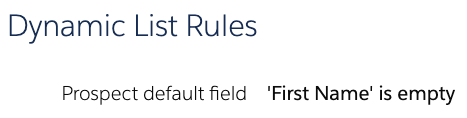
The approach you choose will depend on your specific business use case. For example, if the custom validation is about a required first name field, you’ll likely want to choose approach 1. However, if the validation is to do with sales process and is something marketing don’t really need to be collecting, then you’ll likely want to choose solution 2.
Once you have chosen a solution, re-sync your prospects.
3. Cannot execute flow trigger
Why does it happen?
This error means there’s a problem with a trigger in your Salesforce instance. You’ll find if you try to manually sync any prospects with this error, that they will sync across. However, batch syncing will fail.
How can it be resolved?
There isn’t anything you can do from within Pardot here. The best thing to do is to ask your Salesforce admin to check the process builder with the error ID the Sync Error provides, and review all the fields used in the flow.
Your admin will also need to check that the connector user’s Salesforce user profile has the field level security to interact with all of the fields.
Once this has been done, re-sync your prospects.
4. Deduplication matching rule conflict
Why does it happen?
This error can occur for two reasons.
- When the Pardot connector user does not have the recommended object permissions to see this record.
- When there is a rule in Salesforce blocking the duplicate creation. Salesforce admins can set up duplicate rules to be on the lookout for potential duplicates inside Salesforce, and this error can occur when the prospect Pardot is trying to send to Salesforce matches one of these rules and the creation of a new record is being prevented.
How can it be resolved?
There are two approaches based on the cause of the error.
If the error is caused by the connector user not having the recommended object permissions, then all you will need to do is adjust the object settings on the connector user’s Salesforce profile. This will allow the connector user visibility, and you will be able to re-sync your prospects.
If the error is caused by the duplicate rules, you can do a couple of things:
- If the rules are too strict, you can adjust the Salesforce duplicate rules so that they do not apply to the connector user’s Salesforce user profile.
- Use an existing record to sync instead or merge the records.
- Edit the Pardot prospect’s data so that it no longer matches the duplicate rule.
You can then re-sync your prospects.
5. Insufficient access
Why does it happen?
This error occurs when the connector user doesn’t have enough access to the object it’s trying to update. Typically, the connector user will have the ‘view all’ setting for leads and contacts, but not ‘modify all’. When the connector is configured this way, any attempt to sync and edit a contact that isn’t owned by or isn’t shared with the connector user will result in this error.
How can it be resolved?
You will likely need to get your Salesforce admin involved to help resolve this.
- If the Sync Error references an object ID – Give this to your Salesforce admin. They will then need to check the permissions for the connector user’s Salesforce user profile and allow “modify all”.
- If the Sync Error does not reference an ID – Your admin will need to review your Salesforce organisation wide defaults to confirm if they are set to “private” for accounts, leads, opportunities, campaigns , or contacts. For example, if the issue is with leads, you will need to create a sharing rule on the lead object to include the ‘modify’ permission, and share it with the B2BMA Integration User.
***
Now you know how to resolve your Pardot Sync Errors, you’re ready to start clearing that Sync Error list! If you run into any problems, don’t hesitate to get in touch.