


Salesforce is rolling out critical security updates, and the latest milestone is the mandatory enforcement of phishing-resistant Multi-Factor Authentication (MFA) for privileged users.
If you are a Salesforce System Administrator, traditional verification methods (like the Salesforce Authenticator app, email codes, or SMS text messages) will no longer cut it. Instead, you must log in using highly secure Built-In Authenticators (like Touch ID or Windows Hello) or physical Hardware Security Keys (such as YubiKey or Google Titan).
TL;DR – The Core Takeaway
If you have a Salesforce System Administrator profile or advanced data/setup permissions, you must switch to FIDO2/WebAuthn phishing-resistant MFA before the summer 2026 deadlines. Standard users and API-only integrations are currently exempt.
Who Is Affected by the Salesforce MFA Mandate?
Thankfully, most of your standard business users will not be affected by this specific change. However, if you log in with a System Administrator profile, or have any of the following high-level Salesforce administrative permissions enabled, you must take action immediately:
- Customize Application
- Modify All Data
- View All Data
- Author Apex
Important Enforcement Timeline (2026)
The enablement timeline is fast approaching. To ensure you don’t get locked out of your environments, keep these dates in mind:
| Salesforce Environment | Enforcement Start Date |
| Sandboxes | June 22, 2026 |
| Production Instances | July 1, 2026 |
Note: If you have API-only users (integrations that do not log into a user interface), these are currently exempt from the phishing-resistant requirement.
How to Set Up Phishing-Resistant MFA in Salesforce
Depending on how your organisation logs into Salesforce, your configuration steps will look slightly different.
Option 1: If Your Org Does NOT Use Single Sign-On (SSO)
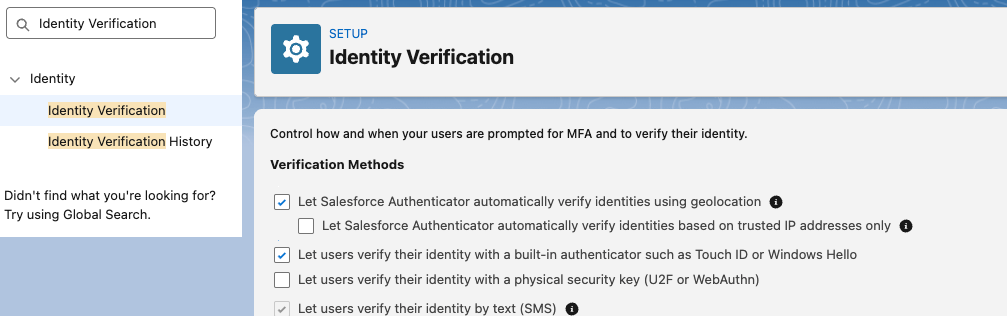
First, a Salesforce Administrator must enable the authentication protocols globally in the system. Navigate to the Identity Verification page in Setup, and check one (or both) of these boxes:
- “Let users verify their identity with a built-in authenticator such as Touch ID or Windows Hello”
- “Let users verify their identity with a physical security key (U2F or WebAuthn)”
Once enabled globally, each affected user must register their security device individually:
- Navigate to your personal Settings.
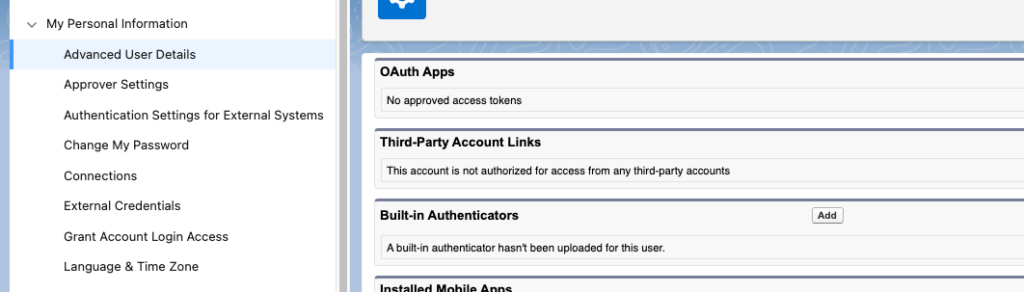
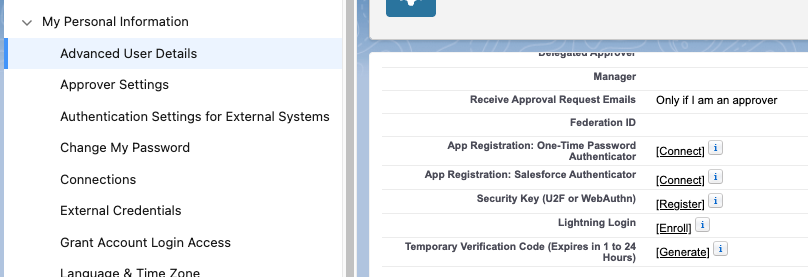
- Click on Advanced User Details.
- If you are registering a Built-In Authenticator (like a laptop fingerprint scanner), find the corresponding Related List, click Add, and follow the prompts.
- If you are using a Hardware Security Key (or a registered mobile phone device), click the [Register] link next to the Security Key (U2F or WebAuthn) field.
Option 2: If Your Org Uses Single Sign-On (SSO)
For privileged users accessing Salesforce via an Identity Provider (IdP) like Okta, Azure AD, or PingFederate, Salesforce will now actively require a phishing-resistant hand-off.
To verify compliance, Salesforce must receive a specific digital signal from your IdP confirming that a phishing-resistant MFA method was used during the SSO login flow. If your IdP does not pass this specific security signal, the user will be intercepted by the Salesforce UI and prompted to register a compliant backup security key directly inside Salesforce.
Need Help Auditing Your Salesforce Org?
Identifying exactly which users hold the permissions that trigger this mandate can be tricky, especially in complex orgs with cloned profiles and sprawling permission sets.
We can help you stay ahead of the June/July 2026 deadlines. Contact us today for a comprehensive user access audit report detailing exactly who is impacted in your production environment, along with a customised step-by-step migration guide.
Official Salesforce Resources
To dig deeper into the technical requirements of this security release, check out the official documentation: