

If you use Salesforce to communicate with your customers, you’ve likely noticed a push toward higher security standards. Salesforce is implementing a major change regarding how emails are sent from the platform: Mandatory Email-Sending Domain Verification.
Here is everything you need to know about why this is happening, what exactly is changing, and how you can ensure your emails continue to reach your customers’ inboxes.
Why is this change happening?
The primary driver behind this update is security and deliverability. In an era of increasing phishing and spoofing attacks, email providers (like Google and Yahoo) have tightened their requirements for incoming mail.
By enforcing domain verification, Salesforce ensures that:
- Trust is established: Receiving servers can verify that the email actually originated from your organisation.
- Deliverability is improved: Verified emails are far less likely to be flagged as spam.
- Security is tightened: It prevents unauthorised parties from “spoofing” your domain to send malicious emails through Salesforce.
What are the changes?
Salesforce will no longer deliver emails from unverified domains. While individual email verification is still required for users, it is no longer sufficient on its own. Salesforce now requires the domain itself to be authorised before any mail can leave the platform.
Public domains like @gmail.com or @outlook.com are currently exempt from this domain-level verification because you don’t own them. Salesforce handles these differently.
The new rule: Every email-sending domain (the part after the “@” symbol) must be verified via one of two methods (both require a DNS update):
- DKIM (DomainKeys Identified Mail): A digital signature is attached to your emails. This is the recommended method.
- Authorised Email Domains: A list in Salesforce that confirms you own the domain. This is a secondary option if DKIM cannot be implemented.
Note: Verification of a root domain (e.g., company.com) does not automatically cover subdomains (e.g., marketing.company.com). Each must be verified individually.
Step-by-Step Guide: Setting Up Verification (DKIM)
Since DKIM is the gold standard for email security, we recommend using this method.
Step 1: Generate the DKIM Key in Salesforce
- Log in to Salesforce and go to Setup.
- In the Quick Find box, type DKIM Keys and select it.
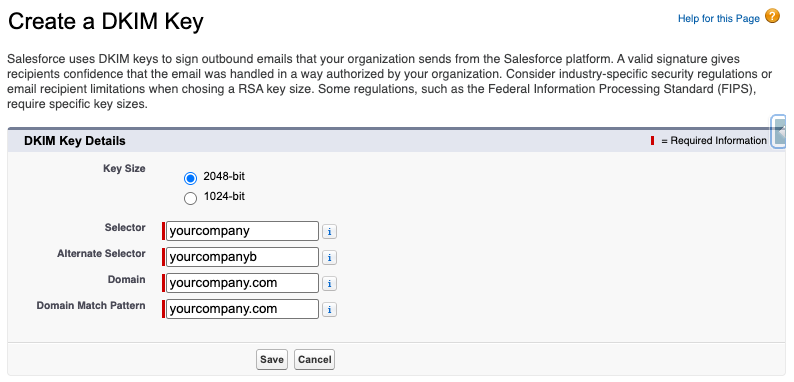
- Click Create New Key.
- Enter a Key Size (2048-bit is recommended), Selector (a unique name like “yourcompany”), Alternate Selector, your Domain (e.g., yourcompany.com), and choose the Domain Match Pattern (in most cases, enter your domain as per the Domain field).
- Click Save. Salesforce will now generate your Public and Private keys.
Step 2: Update Your DNS Records
- Salesforce will provide you with a CNAME record or a Public Key.
- Copy these details and provide them to whoever manages your company’s DNS.
- They must add these records to your domain’s DNS settings (hosted by providers like GoDaddy, Cloudflare, or AWS).
Step 3: Activate the Key
- Once your IT team confirms the DNS records are live (this can take up to 24 hours), return to the DKIM Keys page in Salesforce.
- Find your key and click Activate.
How to Check if It’s Working
Once you’ve completed the setup, you’ll want to confirm that Salesforce recognises your domain as verified.
- Check Verification Status: In Salesforce Setup, go to DKIM Keys. The “Status” column should now display Active.
- Send a Test Email: Send an email from Salesforce to a personal account (like Gmail).
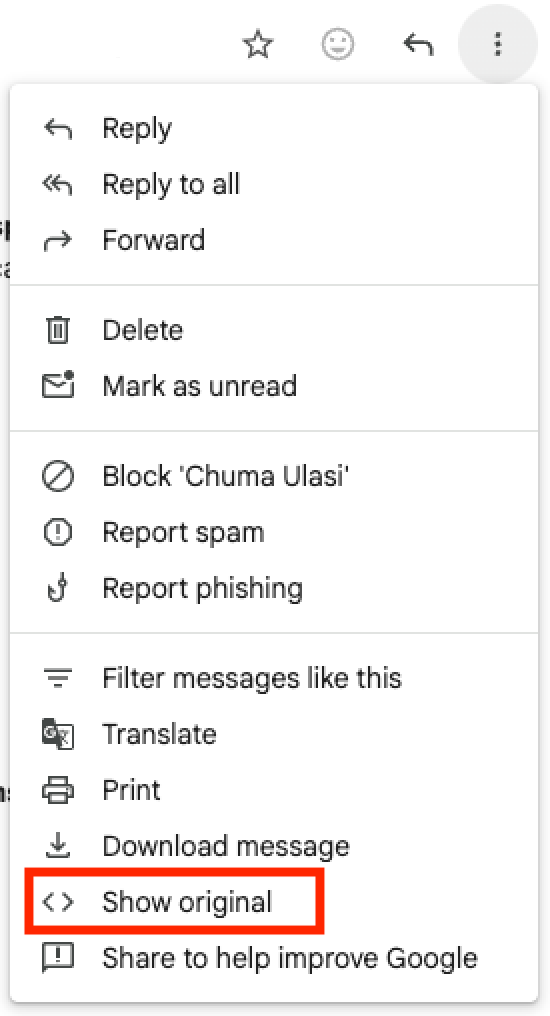
- Open the email in Gmail, click the three dots (More), and select “Show original.”
- Look for a line that says DKIM: ‘PASS’.
- Run an Email Log: Go to Setup > Email Logs and request a log for the last 24 hours. Check the “Sender” column to see if any emails are still being sent from unverified domains.
Conclusion
While this change requires a bit of technical legwork, it is a vital step in protecting your brand’s reputation. By verifying your domain today, you ensure that your critical business communications stay out of the junk folder and in front of your customers.