


Managing Salesforce Account Engagement (Pardot) requires more than just marketing knowledge. Even in a well-established org, you can sometimes hit some invisible walls. Below are some of the configuration snags that often fly under the radar and can disrupt your daily operations.
1. The “Hidden Tabs” trap
A new user is set up with the correct permission sets, but after launching the Account Engagement app, they discover the navigation bar is missing key tabs like ‘Automations’ and ‘Prospects.’
Why this happens: Even if you assign the required Permission Sets, the Salesforce Profile still holds the keys to tab visibility. If the specific Account Engagement tabs are set to Tab Hidden at the Profile level, the user will not be able to see the tabs.
How to resolve: Navigate to Setup > Profiles, select the relevant profile, and check the Tab Settings. Ensure all Account Engagement-related tabs are set to Default On.
2. The “Business Unit” limbo
A Marketing Manager with full Admin access in Salesforce tries to access Account Engagement but the screen shows a loading icon.
Why this happens: In Account Engagement having a Salesforce license isn’t enough. Users must be explicitly “assigned” to the Business Unit (BU) in the Marketing Setup area. If they aren’t on this specific list, the system treats them as unauthorised.
How to resolve:
- Ask your Salesforce Admin to navigate to Marketing Setup > Business Unit Setup.
- Click Manage Users next to your Business Unit
- Manually add the user to the Marketing or Sales users list.
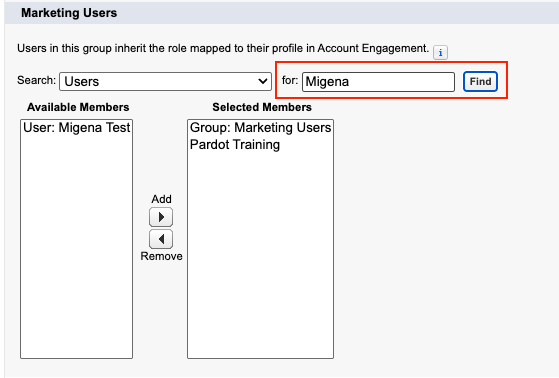
Note: If you have many users and the name doesn’t appear in either section, use the search bar to find the user’s name manually.
3. The Public List “Leak”
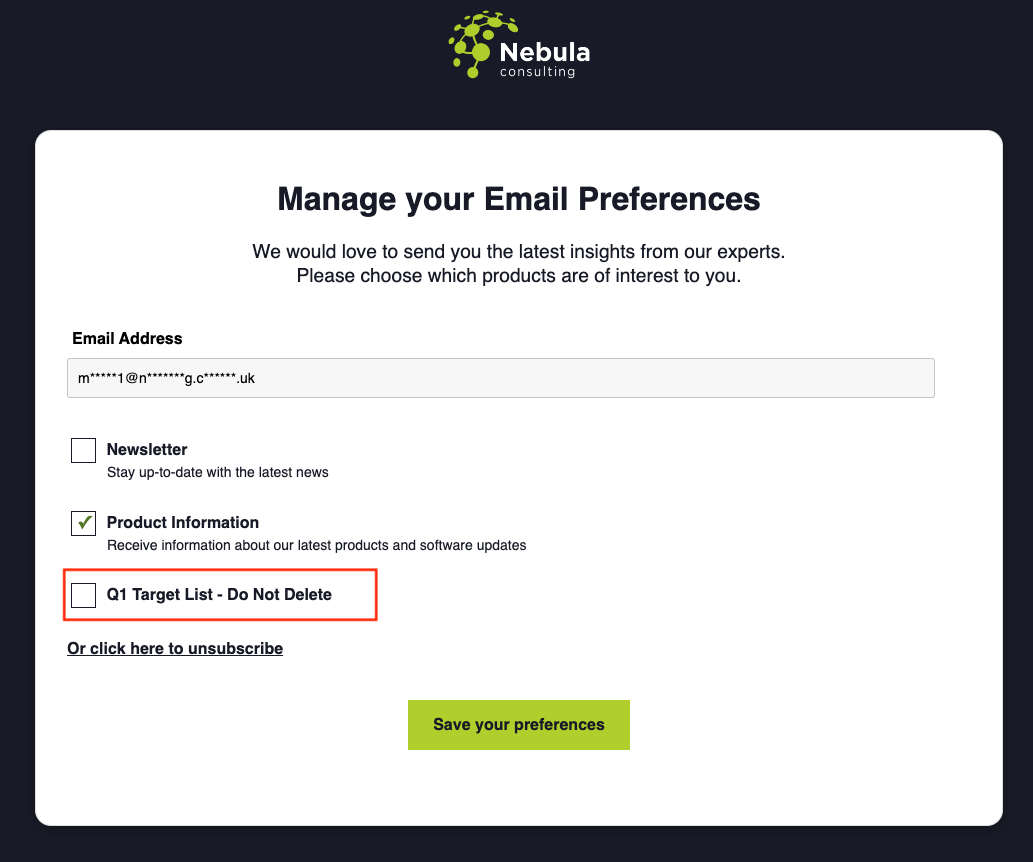
A user visits the Email Preference Center for testing, and notices an internal list like “Q1 Target List – Do Not Delete” displays for the subscribers to opt-in or out of.
Why this happens: This happens when you rely on the Default Email Preference Center (EPC). In Account Engagement, the “Public List” checkbox means “Visible on the Unsubscribe Page”. Users often check this box by mistake. If you use the Default EPC, any list with this box checked appears automatically in your EPC.
How to resolve:
- Audit your lists and uncheck “Public List” on any internal lists.
- Build a custom Email Preference Center. This allows you to explicitly choose which lists appear, acting as a safety net against users who accidentally tick the “Public” box.
4. The Internal DNS Block
An organisation sets up a vanity domain (e.g. go.yourcompany.com) that works perfectly for customers. However, when employees try to click a tracked link while connected to the office VPN or WiFi, the page fails to load.
Why this happens: The external DNS is configured correctly, but the Internal DNS (used by the corporate network) doesn’t know how to route the request. It tries to resolve the address locally and fails.
How to resolve: You need to involve your IT network team.
- Add a CNAME record to your internal DNS for your vanity domain (e.g. go.yourcompany.com) and point it to go.pardot.com.
- When verifying the domain ownership, you may need to add a TXT record. Ensure you leave the host name empty (or use @) so it applies to the root domain, preventing validation errors.
5. The Identity License Role Restriction
An admin is setting up users with the “Identity User” license (users who only need Account Engagement access). They need half of them to be “Administrators” and the other half to be “Sales Users,” but at the moment they are all forced to have the same role.
Why this happens: Salesforce User Sync maps Profiles to Roles on a 1-to-1 basis. Since all these users share the same Salesforce “Identity User” profile, they must all share the same Account Engagement role as you cannot map one profile to two different roles.
How to resolve: Duplicate the Salesforce “Identity User” Profile to bypass this limitation.
- Go to Setup > Profiles and clone the “Identity User” profile.
- Name the new profile “Identity User – Admin.”
- Go to your Account Engagement User Sync settings. Map the original profile to “Sales” and your new “Identity User – Admin” profile to “Administrator.”
- Assign the users to the specific cloned profile that matches the role they need.
Conclusion
When things ”aren’t working” it is often easy to blame the platform, however the problem can often be a configuration mismatch as above. By keeping these common hurdles in mind, you can save yourself hours of troubleshooting and ensure a seamless experience for your teams.
Get in touch with our team of experts for a strategic review of your platform.


