


Flow Approval Processes are the new way of dealing with approvals in Salesforce, by using Flows and Flow Orchestration it is now possible to configure much more flexible and complex workflows than with the old-style Approval Processes. This blog is going to focus on how we can recall an object which has been submitted for approval in a Flow Approval Process. We might want to do this via a button on the record page, in response to field-value changes or by some other mechanism and we can use Flows or Apex to achieve this. In addition, once you understand how to recall an object you can use the same techniques to cancel, create, reassign or review approvals. Let’s get started by looking at how to recall an object submitted for approval using a Screen Flow…
Recalling via Screen Flow
The easiest way to recall approvals is via a screen flow that provides several standard actions to recall, cancel, reassign, or review in-flight approvals. These actions are currently only supported in Screen Flows and cannot be used in other types of flows.
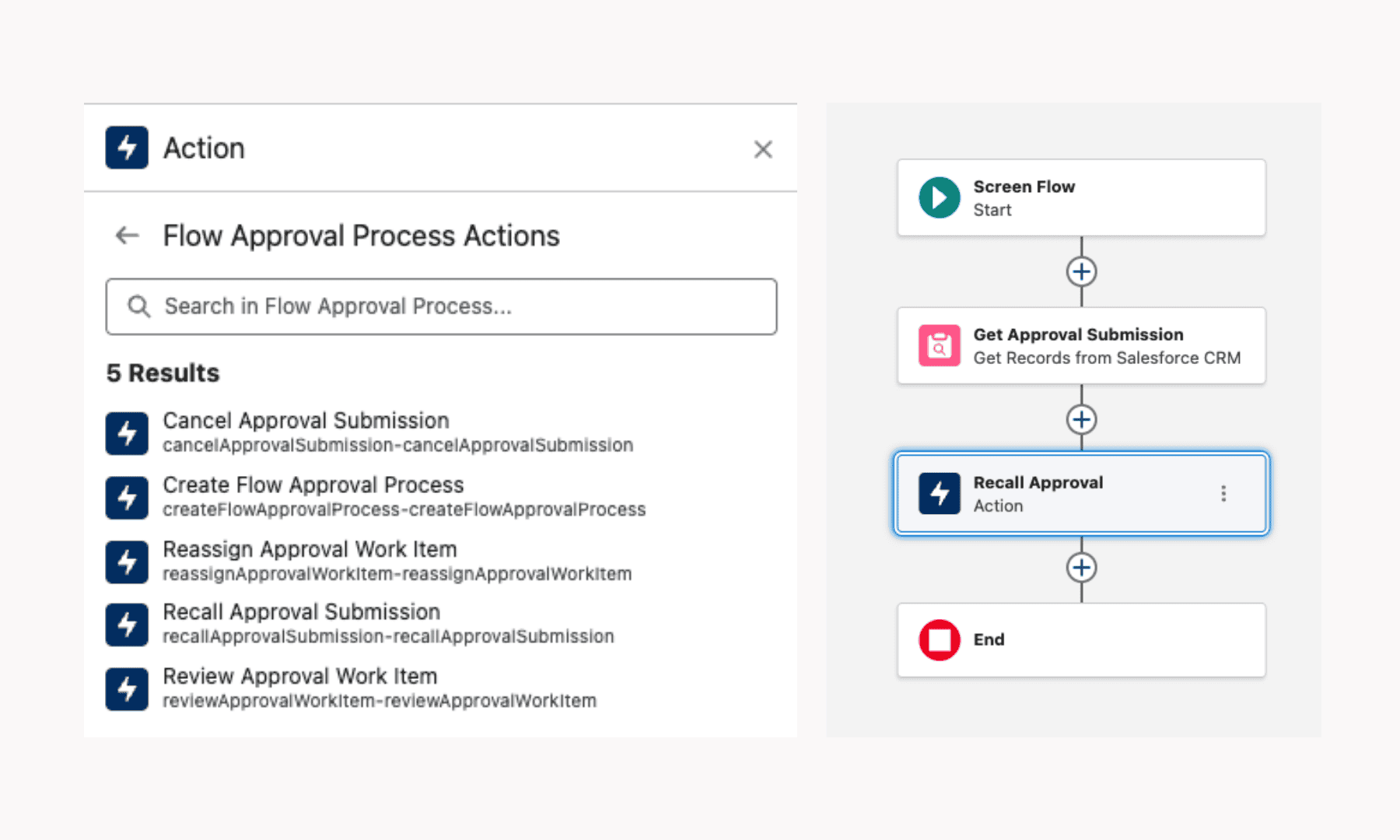
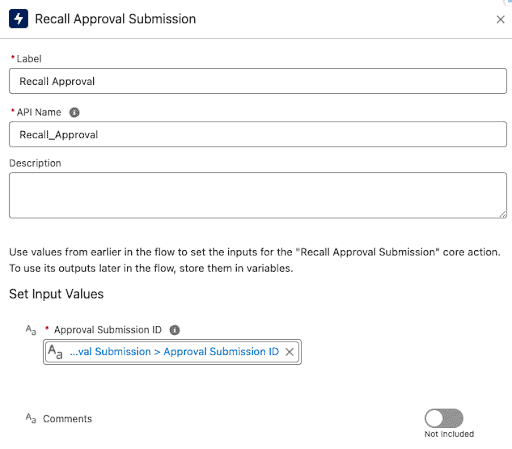
Above is a simple example flow which could be used on a record page or launched from a quick action. We use a variable named recordId which accepts input to get the Id of the record we want to recall from the Flow Approval Process and use a Get Records element to find the ApprovalSubmission record linked to it via the RelatedRecordId field. Then we configure the Recall Approval Submission action as shown below with the ApprovalSubmission Id inputted and an optional comment:
This approach only works if you’re happy for the recall to be performed via a Screen Flow, even using an invisible Screen Flow like the one in the example would generally need some user input to set it off, such as clicking a quick action. But what if you need your recalls to be performed in response to trigger conditions or other complex logic without direct user input?
Recalling via Apex
Using Apex allows you to fully automate your recall and gives you the benefit of the flexibility that comes with Apex – but it is trickier to implement than a Screen Flow. In the old-style Approval Processes we had Apex methods we could plug into to get this done; all it took was a SOQL query to find the right ProcessInstanceWorkItem and a few lines of code to recall it. The new Flow Approval Process is built on a whole new set of objects and does not currently have any nice convenient Apex methods for us to access – but fear not! There is a workaround.
We need to invoke the same flow action shown in the Screen Flow example through Apex. Since the Winter ‘23 release, some flow actions have been available to invoke from Apex through the Invocable.Action class, but unfortunately the recall action is not currently supported. We can test it by executing a code snippet anonymously. I include it here so you can try it yourself on the off-chance that this becomes supported in future and stops giving a ‘recallApprovalSubmission is not a valid type’ error: Invocable.Action.createStandardAction(‘recallApprovalSubmission’).invoke();
We need to use a callout to invoke the action instead, and there are 2 ways to do this, the first way is to create the whole request in Apex and use UserInfo.getSessionId() in the request header. This means that the authorisation for the callout will be done as the running user so they will need to have the API Enabled permission, and they cannot be the Process Automation User as getSessionId() will return null for them. The code looks like this:
HttpRequest request = new HttpRequest();
request.setEndpoint(URL.getOrgDomainUrl().toExternalForm() + ‘/services/data/v64.0/actions/standard/recallApprovalSubmission’);
request.setMethod(‘POST’);
request.setHeader(‘Authorization’, ‘Bearer ‘ + UserInfo.getSessionId());
request.setHeader(‘Content-Type’, ‘application/json’);
String body = JSON.serialize(new Map<String, Object>{
‘inputs’ => new List<Map<String, String>>{
new Map<String, String>{
‘approvalSubmissionId’ => submission.Id,
‘comments’ => ‘Approved by Another’
}
}
});
request.setBody(body);
As you can see, the payload requires an ApprovalSubmission Id and an optional comment – exactly the same as when we looked at the action in a Screen Flow. Just like in the Screen Flow example, you can get the ApprovalSubmission Id by querying on the RelatedRecordId field, as this will match the Id of the record you wish to recall. There is currently no documentation for the actions so the only way to see what payload is needed for the recall action, or any other Flow Approval actions, is to put them in a Screen Flow and view the inputs.
The second option for doing this callout is to use a Named Credential for the authorisation. More information on setting that up in your org is in this blog post. Once you’ve got your Named Credential set up, the code becomes slightly simpler and doesn’t rely on the running user to do the authorisation:
HttpRequest request = new HttpRequest();
req.setEndpoint(‘callout:My_Named_Credential);
request.setMethod(‘POST’);
request.setHeader(‘Content-Type’, ‘application/json’);
String body = JSON.serialize(new Map<String, Object>{
‘inputs’ => new List<Map<String, String>>{
new Map<String, String>{
‘approvalSubmissionId’ => submission.Id,
‘comments’ => ‘Approved by Another’
}
}
});
request.setBody(body);
Permissions to recall
Several permissions are required for a user to actually perform a recall on a record which has been submitted for approval. The most obvious one is Approvals Admin which is not available to community, platform or integration users. Additionally, the user needs permission to access the Approval Submission object, the object you submit in your approval process and access to edit fields on ApprovalSubmission, ApprovalWorkItem and the object you submit for approval. Depending on your exact use case, your running user may also need the Manage Flows, API Enabled and Run Flows permissions as well.
In Conclusion
Flow Approval Processes don’t yet have feature parity with the old-style Approval Processes, but there are viable ways to get around this issue for now. Personally, I’d love to have the same range of Apex methods that we had with the old-style Approval Processes to give maximum flexibility to Flow Approval Processes, but before that happens, I hope that Salesforce begins allowing us to use the Flow Approvals actions in Autolaunched Flows or introduces support for these actions to use Invocable.Action.createStandardAction() – anything to stop us from having to use callouts as a hacky workaround.


