



Over the past few months, Salesforce has been tightening the belt around integrations due to some high-profile data leaks. Whilst the underlying platform is secure, vulnerabilities can be exploited, such as integrations. In this article, we’ll look at how you can manage your Connected App usage, and how to secure it.
But we don’t have any integrations?
If you’re not using the traditional web-based interface (Lightning or Classic) to access your Salesforce data, you’re going to be using an integration. This includes the Salesforce Mobile Apps, the Outlook/Gmail plugins, the Salesforce CLI tool, and a number of other applications not traditionally identified as an integration.
Any integration requires either a Connected App or External Client App within Salesforce. Salesforce already provides these for their own applications, and you can see these under the Manage Connected Apps list in your org, if you have ever used them.
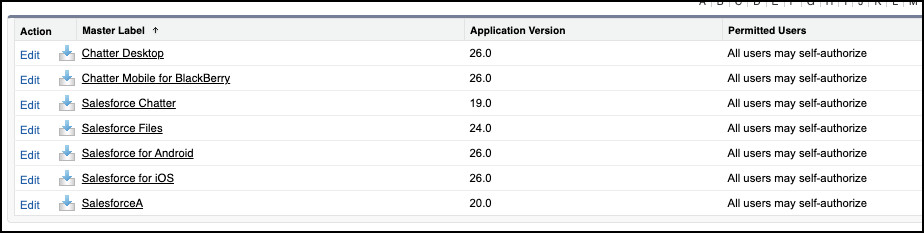
Let’s review your integrations
Your first step is to look under the Connected Apps OAuth Usage in Setup. This will list every App any user has ever authenticated against.
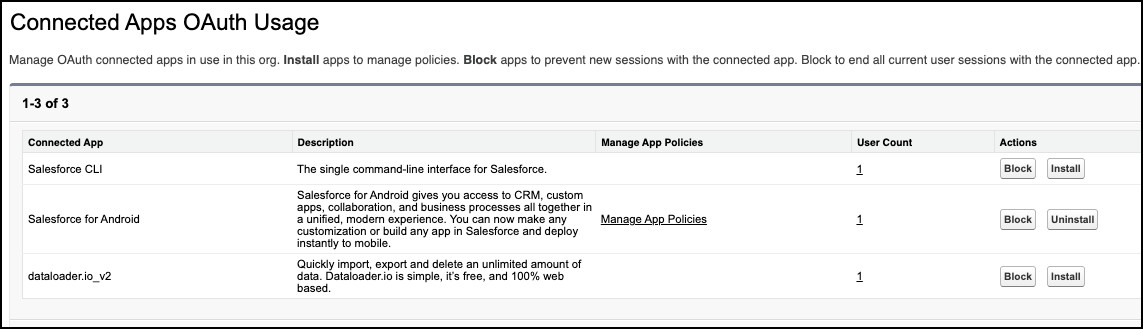
Looking down this list, you’ll see there are buttons under the Actions column, to Block, Install or Uninstall the App.
- Block / Unblock
This locks down the Connected App, preventing any new sessions and removing any current sessions. When blocked, no one can use that Connected App in your org. This button changes to Unblock when blocked.
- Install / Uninstall
It’s possible that most connected apps will not be installed in the org. Installing allows you to apply access policies to the Connected App, such as only letting certain users access it, or enforcing IP restrictions on Profiles. For more details, you can review the official Salesforce Help documentation: https://help.salesforce.com/s/articleView?id=xcloud.connected_app_manage_oauth.htm&type=5
This button changes to Uninstall when installed.
Now review every app.
If you recognise it and it’s not installed, click the Install button. If you don’t recognise it, Block it.
Want to see who’s using it and when it was last accessed? Click on the number under the User Count column.

This will give you a good understanding of what your org is currently connected to, and who is doing so. Your next step should be to start securing your org’s usage of Connected Apps.
How do I lock down a known application?
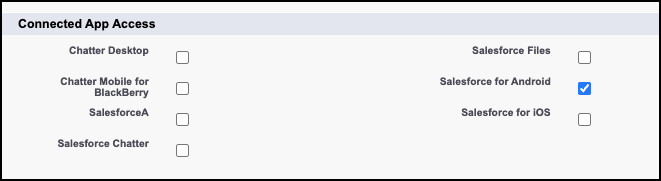
Let’s imagine you have an application you only want certain users to access and use. The first step is to either create a new Permission Set (for specific users), or edit an appropriate Profile, and assign that Connected App to it.
You will either have an option to select the Connected Apps using checkboxes…
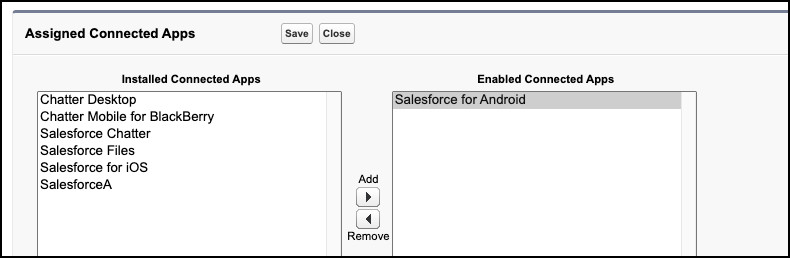
Or you can edit the Assigned Connected Apps, and add to the Enabled Connected Apps.
Then, find the Connected App in the Manage Connected Apps list, and click Edit (or Manage App Policies from the Connected Apps OAuth Usage page) and change the Permitted Users setting to ‘Admin approved users are pre-authorized’.
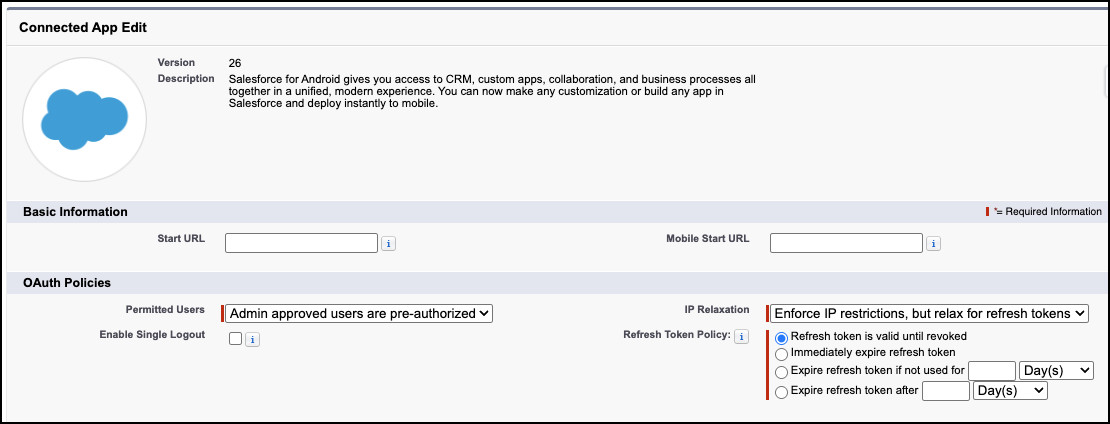
You will get a warning that…
“Enabling this option will result in all users currently using this app being denied access. Please reference the Connected Apps OAuth Usage Report if you are unsure who is using the app.”
Changing this setting will revoke all existing authentication tokens for this app.
Click Save and you should see the Profile or Permission Set listed below the App details.
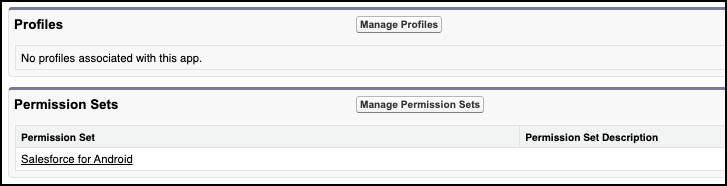
Now only authorised users can access the app, and if you remove the Permission Set from the user, their access is instantly revoked.
What do I do now?
After completing the review, you’re in a much better position than you were – you know exactly what integrations you have, and who’s using them. If you leave any Connected App Uninstalled, new users will not be able to use that integration. Existing authenticated users will retain access for now.
A new user permission, which is currently only assigned to the System Administrator standard profile, Approve Uninstalled Connected Apps is the only way to allow an unknown connected app access to your org.


